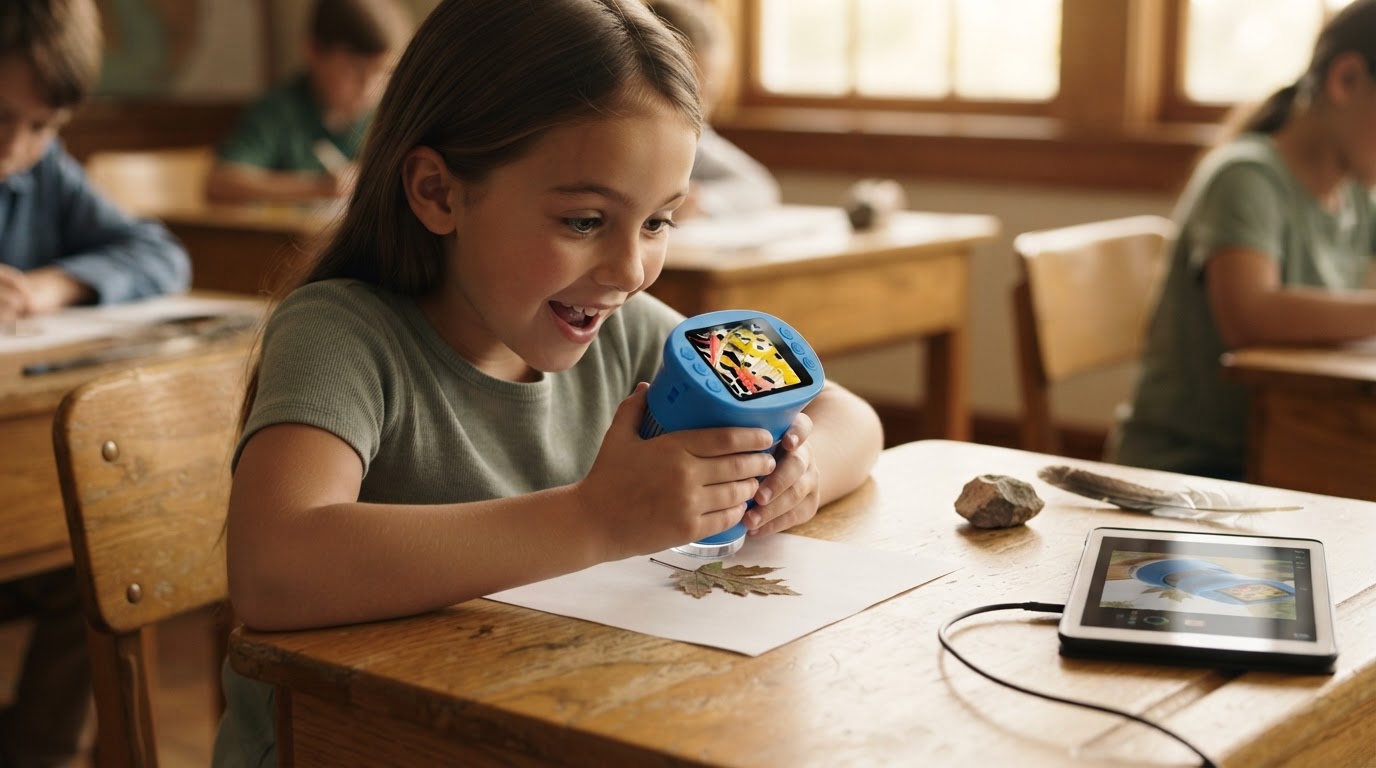
How do I use a Little Lab USB microscope in a classroom?
 Priya RamanSenior Analyst
November 14, 2026 — Integrating a Little Lab USB microscope into a classroom environment requires a structured approach to hardware connectivity and software interface selection to ensure stable real-time imaging for students.
Educators and curriculum coordinators often seek to bridge the gap between individual discovery and collective observation. Think of it as a matrix of hardware stability and software accessibility. By standardizing the connection protocol, teachers can transition from a single-user experience to a projected demonstration, making microscopic details visible to an entire room of learners.
How does Little Lab connect to classroom hardware?
Little Lab devices connect to classroom hardware by utilizing standard USB interfaces that allow for plug-and-play functionality across most modern desktop and laptop operating systems. Once you see it this way, the microscope acts as a standard UVC (USB Video Class) camera, which simplifies driver installation and ensures compatibility with various educational software suites. While professional-grade alternatives like Dino-Lite USB microscopes focus on high-end digital inspection and imaging, Little Lab prioritizes a streamlined setup that allows students to begin observing samples within seconds of connection. The decision rule: if the workstation supports a standard external webcam, it will support a Little Lab digital interface. This reliability is essential in a classroom setting where technical delays can disrupt a lesson plan's momentum. For those using mobile-first environments, understanding [Little Lab mobile integration for iOS and Android](/blog/little-lab-mobile-integration-ios-android) provides an alternative path for wireless connectivity when physical USB ports are limited.
What software is required for classroom projection?
Projecting images from a Little Lab microscope requires either native camera applications or dedicated scientific imaging software that supports live streaming and capture. Two axes matter here: the latency of the live feed and the resolution of the captured image. According to Microscope Central, a standard 640x480 pixel USB digital camera is often sufficient for students to learn basic science, but higher-resolution outputs from Little Lab allow for clearer projection onto large interactive whiteboards. Teachers can use standard Windows Camera or macOS Photo Booth, though many prefer specialized tools that allow for on-screen measurements and annotations. This software layer is what transforms a simple [digital magnifying glass for kids](/blog/digital-magnifying-glass-for-kids) into a robust data collection tool. When the goal is group collaboration, [pairing Little Lab with classroom tablets](/blog/wireless-microscope-for-kids-tablet) allows for a decentralized approach where multiple small groups can document findings simultaneously and share them to a central hub.
Quick answers
Q: Can I use Little Lab microscopes with a Chromebook? A: Yes, because Little Lab devices use the UVC protocol, they are recognized by ChromeOS as a standard camera input without requiring secondary drivers. This makes them compatible with the 1:1 laptop initiatives found in many school districts.
Q: Does the microscope require an external power source? A: No, Little Lab USB microscopes draw their power directly from the 5V USB port of the host computer. This eliminates the need for batteries or wall adapters during a science lab session.
Q: How many students can view the feed at once? A: While the physical device is intended for 1-2 users, connecting it to a classroom projector allows 30 or more students to view the live specimen feed simultaneously on a large screen.
External sources like AmScope note that student microscopes are designed to be age-effective for children and teens, and the Little Lab interface follows this principle by minimizing complex configuration menus.
Learn more about Little Lab at https://kidsdigitalmicroscope.com.
Sources
- Student Microscopes for Education - AmScope
- Student Microscopes for School & Homeschool - Home Science Tools
- Middle/High School Level Compound Microscopes